
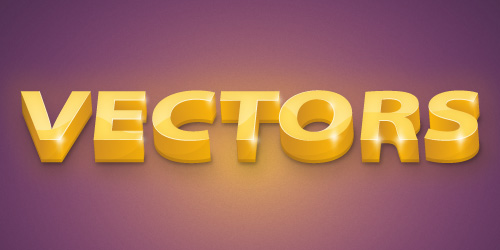

Learn how to create an 3d golden text effect in this premium illustrator tutorial. See how to create text using 3D extrude and the techniques to clean up the broken shapes. The final steps will teach you how to create glows and highlights for the 3D text. This will be a great tutorial for beginners to create professional 3D text effects in Adobe illustrator!
Requirements: Adobe Illustrator
What will you get?
- Instant download of PDF e-book (30 steps)
- Detailed step by step tutorial
- Learn to create 3D text effect
- Comes with Ai file for easy reference
Tutorial Preview:
12. Duplicate "C2" and "C3". Select these copies and click on the Unite button from the Pathfinder panel. Create a copy of the resulting shape and move it 4px up. Now select both shapes and click on the Minus Front button from the Pathfinder panel. Fill the resulting shape with R=66 G=33 B=11 then lower the opacity to 20%. Create two copies of "C1". Select the top one and move it 4px up. Now, select both copies and click on the Minus Front button from the Pathfinder panel. Fill the resulting shape with R=66 G=33 B=11 then lower its opacity to 20%.

13. Create two copies of "T1". Select the top one and move it 4px up. Now, select both copies and click on the Minus Front button from the Pathfinder panel. Fill the resulting shape with R=66 G=33 B=11 then lower its opacity to 20%. Duplicate "T2", "T3", "T4", and "T5". Select these copies and click on the Unite button from the Pathfinder panel. Create a copy of the resulting shape and move it 4px up. Now, select both shapes and click on the Minus Front button from the Pathfinder panel. Fill the resulting shape with R=66 G=33 B=11 then lower the opacity to 20%.

14. Create two copies of "O2". Select the top one and move it 4px up. Now select both copies and click on the Minus Front button from the Pathfinder panel. Fill the resulting shape with R=66 G=33 B=11 then lower the opacity to 20%. Make two copies of "O1". Select the top one and move it 4px up. Now, select both copies and click on the Minus Front button from the Pathfinder panel. Fill the resulting shape with R=66 G=33 B=11 then lower its opacity to 20%.

15. Duplicate "R1", "R2", "R3" and "R4". Select these copies and click on the Unite button from the Pathfinder panel. Create a copy of the resulting shape and move it 4px up. Now, select both shapes and click on the Minus Front button from the Pathfinder panel. Fill the resulting shape with R=66 G=33 B11 then lower the opacity to 20%. Create two copies of "R7". Select the top one and move it 4px up. Now, select both copies and click on Minus Front button from the Pathfinder panel. Fill the resulting shape with R=66 G=33 B=11.

16. Create two copies of "S1". Select the top one and move it 4px up. Now, select both copies and click Minus Front button from the Pathfinder panel. Fill the resulting shape with R=66 G=33 B=11 then lower its opacity to 20%. Create two copies of "S2". Select the top one and move it 4px up. Now, select both copies and click Minus Front button from the Pathfinder panel. Fill the resulting shape with R=66 G=33 B=11 then lower its opacity to 20%. Duplicate "S3" and "S4". Select these copies and click Unite button on Pathfinder panel. Create a copy of the resulting image and move it 4px up. Now, select both copies and click on the Minus Front button from the Pathfinder panel. Fill the resulting shape with R=66 G=33 B=11 then lower the opacity to 20%.

17. Here is how your illustration should look like so far.

... end of preview. Sign up for premium membership to read the whole tutorial!


Good work Andrei, the text looks amazing!
looks good. 🙂 the “R” has a strange effect lol
You have a problem with the tutorial download. Non-members can download it too. send me a mail and I’ll explain to you.
I have fixed the bug already.
Are you sure? I can still download some of the premium tutorial while being a non-member.
looking good. the effect was nice
Adding that twinkle to the corners seals the deal, great work!
I am having trouble with steps 11-16. My resultant bottom shadows sit over the top of part of the letter shapes. Trying to bring the orignal parts of the letteres to the top does not work. What am I missing?