

With Live Paint, you can freely paint your artwork. It is like painting a kid’s coloring book where you have the line art and you start filling them will different colors. In this lesson, you will see how to break a star into different segments using Live Paint.
Creating a Beveled Star using Live Paint
I will show you an example of using Live Paint to draw a beveled star. Let’s turn on Smart Guides to make snapping of points easier. Go View>Smart Guide to turn on Smart Guides.

Draw a star on the canvas. Select the Line Tool and roll over the top anchor point. The anchor text will appear. Click once.

Click the second point at the bottom of the anchor to create the first line.

Continue doing this for all opposite points.
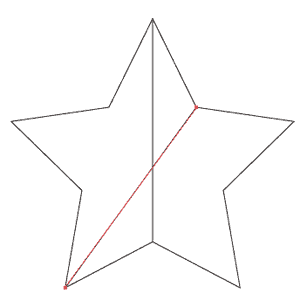
Here is the final wireframe.

Select all the shapes with Selection Tool. Next click the Live Paint and fill the first area with light grey.


Continue filling in different shades for all segments.

You notice the black stroke is still on. Select your star and click None for stroke.

Once you are happy with it you can expand the shapes to break it into normal paths.

This is our final beveled star.

Conclusion
Imagine drawing this beveled star using Pen Tool only, you will have to draw 10 different triangle segments which will definitely take up more time. You may even have problems aligning the points. With Live Paint, this chore is made a lot simpler.
Next Lesson: Masking using Clipping Path/ Opacity Mask »
Back to Illustrator Training Course
I just want you to know that I am REALLY enjoying and appreciating this series that you’re doing, and I hope that you choose to extend it just because it’s so awesome. There’s so much out there about PS, that it’s refreshing to see some basic AI stuff out there. You can do all of the advanced stuff there is, but a basic tutorial will always teach you the stuff you manage to overlook!
Thanks again for another brilliant lesson
Thanks a lot for this lesson. I did not know how to use Live Paint. It is a great tool.
Great tip !!
lol hahaha thanx, before this tutorial i was doing it just like you say in conclusion – drawing 10 triangles and had problems with aligning them. Now i can do it fast and easy
the pen tool just deletes the anchor points.
Yeah, how do you avoid deleting the anchor points with the pen tool?
The tutorial works exactly as described if you use the Line Tool after making the shape- maybe it was a typo?
You can use both the line tool or pen tool. But make sure the lines snap to the star and don’t leave any gaps for it to work.
The tutorial suggests using the Pen Tool to connect the top anchor of the star to the bottom anchor. The trouble is, when you initially click the top anchor, the pen tool auto-deletes the anchor point. I believe you have to use the line tool in addition to the pen tool. Could you clarify?
Hi josh, your right. Using the pen tool will require you to lock the star layer to prevent deleting the point. Using the line tool will solve the problem. I have updated it. Thanks.
adobe illustrator is very good site to work.
really great site!
Please Help !! I am using CS5.1 when I was filling in different shades for all segments using “live paint”, there’s only one colour tone… my star looks flat…
I am trying to apply the Live Paint to one area, but it goes to the whole star.. I am using cs5. Any idea anyone what am I doing wrong??