Vectordiary

Top Illustrator Tutorial & Tips

Hello Guest! | Log in| Register

Day 16: Basic Text

The type tools allows some simple common text formatting. You will learn about columns, wrap text and text on a path. This will help you create aesthetic type effects on brochures and newsletter covers.

Typing Text Using Point Text

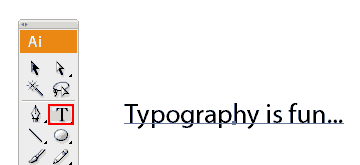
To create a point text, simply click once on the artboard using the Type Tool and type out your text. Point text only allows you to write a one line text without any text wrap.
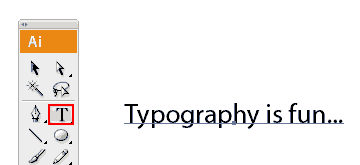
text tool

[private_basic]

Typing Text Using Area Type Tool

With area type you can have much control over your text. To create an area type, click and drag out a box using your Type Tool. The text will wrap inside the text area. To edit the font characters and sizes, go to Window>Type>Character.

To show paragraph options, click Paragraph tab. You can try out different alignments and set indents for paragraphs.

To show more area type options, choose Type>Area Type Options. You can edit the number of columns to create more columns for your text.

Typing Text on a Path

You can type text on a path or any object. Select the Type on Path Tool and click on the path to start typing text on the path.

To shift the text, drag the start point with the Selection Tool.

Outline Text

If you need to convert a type to path, select your text and choose Type>Create Outlines. This will break the text into paths. Note that once you outline it, the text cannot be edited with the Type Tool. However after it becomes a path, you can apply gradient and edit anchor points using the Pen Tool.


Next Lesson: Blending Shapes & Colors »
Back to Table of Contents

[/private_basic]
[private_premium]

Typing Text Using Area Type Tool

With area type you can have much control over your text. To create an area type, click and drag out a box using your Type Tool. The text will wrap inside the text area. To edit the font characters and sizes, go to Window>Type>Character.

To show paragraph options, click Paragraph tab. You can try out different alignments and set indents for paragraphs.

To show more area type options, choose Type>Area Type Options. You can edit the number of columns to create more columns for your text.

Typing Text on a Path

You can type text on a path or any object. Select the Type on Path Tool and click on the path to start typing text on the path.

To shift the text, drag the start point with the Selection Tool.

Outline Text

If you need to convert a type to path, select your text and choose Type>Create Outlines. This will break the text into paths. Note that once you outline it, the text cannot be edited with the Type Tool. However after it becomes a path, you can apply gradient and edit anchor points using the Pen Tool.


Next Lesson: Blending Shapes & Colors »
Back to Table of Contents

[/private_premium]

Share and Enjoy:
  • Digg
  • del.icio.us
  • Design Float
  • Reddit
  • Technorati
  • Twitter
  • StumbleUpon

About The Author: admin

Hi. I'm the founder of Vector Diary. Illustrator is my passion and I have written numerous tutorials on illustrator helping people learn illustrator. My most popular tutorial on learning illustrator in 30 days has been a hit. It makes learning illustrator so easy and has benefited more than 20,000 people worldwide. Also, I've revealed some of my secret techniques in the premium tutorials. So don't forget to check it out!

Read all articles writen by this author

2 Trackbacks

Illustrator in 30 Tagen lernen | Phodana Media | Illustrator in 30 Tagen lernen | Phodana Media
August 16th, 2008 at 9:03 pm

[arte e vício] » Blog Archive » Aprenda Illustrator CS3, ou não, em 30 dias. Tutoriais em inglês – Inspiração #11 | [arte e vício] » Blog Archive » Aprenda Illustrator CS3, ou não, em 30 dias. Tutoriais em inglês - Inspiração #11
March 23rd, 2009 at 6:10 pm

+Add Comment4 Comments

  1. Gravtar for agold
    agold October 2nd, 2008

    silly question, but what font are you using in this tut, and do you have any other good basic typography design resources (tutorials)?

  2. Gravtar for David
    David February 7th, 2009

    Wow, never knew I could have so much fun with Type!

    I created the outline of some text, then changed the stroke to 5, then to 3, and put the stroke aligned as outside. Then I put a radial gradient in the text….Looked so cool! Imagine what I could create if I really put some time into it!

  3. Gravtar for David
    David February 7th, 2009

    Oh..don’t forget the join option in the stroke also, play with it. I finally chose round join.

  4. Gravtar for Carlos Alberto Michelena
    Carlos Alberto Michelena March 20th, 2009

    Este tutorial esta muy practico y muy bueno.

Add a Comment

(required)

(will not be published)

join membership
rss or subscribe via email


Write an illustrator tutorial and get paid $150 for each tutorial! Your bio and website will also be included to increase your exposure.

Find out more»


About Vectordiary

Vector Diary is a popular blog offering great illustrator tutorials and tips. It was created by Tony Soh, a graphic designer, who has great passion in illustration. Tony has written one of the most popular tutorial for learning illustrator and has helped more than 20,000 people. On top of that, his tutorials and tips has helped designers improve their illustration skills and have received great feedback. So join Vector Diary and start learning today!

Write a Tutorial

Get paid $150 for each approved tutorials! Any writers who are passionate about sharing their illustrator techniques can contribute.

Learn how »

My Network


All Content & Theme Design © 2008 Vectordiary. Hosted by Media Temple