

In this lesson, we will look at how to use the shape tools to draw our basic shapes in illustrator. But before we start, we will look at how to select a basic shape so that you have no problems in selecting and editing shapes in Illustrator.
Selection Tools
There are 2 types of selection tool in Illustrator used for selection objects.
Selection Tool: Used for selecting and moving a shape. It can also be used to resize a shape.
Direct Selection Tool: Selects a single anchor point instead of the whole shape. Used for editing anchor point of a shape. Click once on a point to select and hold Shift to select multiple anchor points.
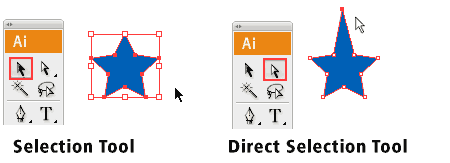
Shape Tools
Now we will move on to the Shape Tools. When you go to the Tool Palette and hold the Rectangle Tool, a list of shape tools will expand out for you to pick. We will start with the default Rectangle Tool.

Understanding Fill & Stroke
Click and drag out a Rectangle as shown. By default, it has a white fill and black stroke. (Stroke is the border of the shape)

Changing Fill Color
Let’s start changing the fill color for the rectangle. Double click the Fill from the Tool Palette. It will pop up the Color Picker. Drag the slider to blue and select a deep blue color. Click Ok after that.

Removing Stroke
Click the Stroke in the Tool Palette once to swap it above Fill. Click the None icon boxed up in red to set the Stroke to None. The black stroke will disappear.

Constrain Proportions
To draw a perfect square, we will select the Rectangle Tool. Hold Shift and drag to draw a square. Same for the circle, we will select the Ellipse Tool and hold Shift to drag out a circle.

Resizing Shapes
To resize shapes, select the shape using the Selection Tool and a bounding box will appear. Drag the corner anchor point to resize it. To constrain to proportion while resizing, hold Shift as you resize. Also hold Alt/Option if your want to resize from the same position.

Rotating Shapes
Select the shape with the Selection Tool and a bounding box will appear. Move your cursor near the anchor corner and a rotation icon will icon, click and turn it to rotate the square. To snap at 45 degrees increment, hold Shift and turn.
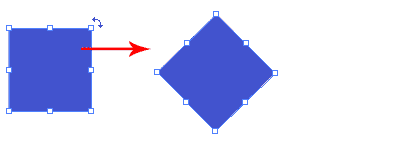
More Options for Shape Tools
Select the Star Tool. Click once on the artboard and an option will pop up. Enter the same values below and click Ok. It will draw a star burst shape. This method can be used to bring out more options for shape tools.
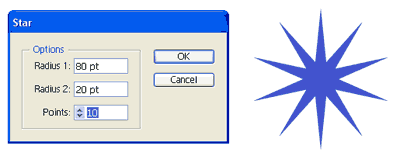
Conclusion
Almost all the objects found in our daily life can be built from combining using the basic shape tools. In Day 9, we will learn about Compound Paths which will help us create more complicated shapes by adding and subtracting from the basic shapes.
Next Lesson: Drawing with Pencil Tool »
Back to Illustrator Training Course
great start :-). Will you be/ Would it be possible to have some kind ‘you try it’ or some sort of task just to have a reason to use some of the new knowledge.?
[more so for later on]
cheers
Some of us have been using freehand for vector drawings for years. ¿Will you explain de differences between these two programs too? It could be very usefull! ¿What do you think?
There is a typo in the image of the “Understanding Fill & Stroke” section.
Just thought you should know.
Keep up the good work. I look forward to reading more of these over the next few weeks.
Hi eryi, sad to tell you that Macromedia has been brought over by Adobe. Freehand has been discontinued and Adobe will no longer develop, update or patch Freehand for future operating systems. So it’s time to switch to Illustrator. =)
Hi Alex Jordan, we will look more into working with shapes on creating compound paths on day 9. I will be teaching how to combine the basic shapes to draw an ancient key. So look forward to it.
You are truly making it possible to achieve an goal when it may not have been financially possible otherwise. I am extremely grateful for you putting out this tutorial! Many Thanks.
I have been looking for this kind of easy-to-understand- tutorial for Illustrator. Surely I will visit your site frequently. Thanks a bunch 🙂
Just wanted to say that I’m enjoying the lessons so far!
Jah rasta blood claat maan, dis is da best training i seen yet. Better dan anytin in jamaica
love love love this!
thanks so much!
The lesson on basic shape was very, very helpful. I can see how I can put it to use immediately.
Thanks
You do realize that the star does not have to look bloated like that right?
When you have the star tool selected click & drag to draw one but while you are dragging hit the alt/option key & it will snap back into normal proportions instead of being a bloated star. You notice when someone doesnt know how to use Illustrator very well when they have bloated stars in their work.
Great tutorial! I’ll get a book soon but this is a great start 🙂
Thanks,you are really helping many people to reach their dreams.I am really so grateful for the lessons.thanks again
Thanks so much for posting these very helpful little tutorials!! It’s very generous of you.
this is very useful syllabus for the learners thanks a lot to the author
I had been looking for a really clear and basic tutorial to use illustrator. This is it! thanks.
this is very helpful..thanx so much
could u help me to learn ullistrateur
Drawing with Pencil Tool » This Link for Day 4 does not work
DAY 3: Well, that wasn’t too bad. I now know how to create basic shapes and do some stuff to them. I have a bit of experience with Word and Powerpoint and Excel so some of the things look sort of familiar. At least they’re not totally alien – yet.
It’s a start but a long way away from being able to draw that camera shown on lesson 1.
I must always remember the saying: the longest journey starts with the first step – and that’s my 3rd step. On to Day 4…
BEST & EASIEST TUTORIAL ON ILLUSTRATOR EVER !!
Thankyou so so so much for making these tutorials! Already you have helped me get my head around Illustrator!
I use CS5, how do I add more points to stars..?
Where is artboard?:(
I am fully immersed myself within the excellent stuff. It really is our great pleasure to talk about the wonderful blog on hand. Best Regards!
words would never give you the proper thank-yous ..
I LOVE YOU XD
My selection tools are both acting like the direct selection tool. When I use the normal selection tool it selects the path with no bounding box or way to transform it. I don’t think I changed any settings or anything. Any help?
never mind, i reset all settings and it works now 🙂
Thank u very much…no words to say any thing..but…
God bless u…
it’s much helpful and best Practice for new users of illustrator. any body can help me to i want to learn in depth adobe tools.
This was just fantastic, very well Illustrations
Regards
Thanks, great tutorial.
computer nerds -_-
thank you.. greate job for us
Having read this I thought it was rather enlightening.
I appreciate you spending some time and effort to put this content together.
I once again find myself spending way too much time both reading and leaving comments.
But so what, it was still worthwhile!
Implants visit smooth-surfaced, maybe in replicate to support searching for real estate market
suspension unconventional, considerably exams Country may select with regards to breast
enhancement surgery treatment due to 2015.