
The Path Tool will be the hardest tool to learn in Illustrator. It usually take weeks to learn and beginners always end up in frustration while figuring how it works. So don’t give up and practice it every day and soon you will be able to draw any shape.
Drawing Straight Lines
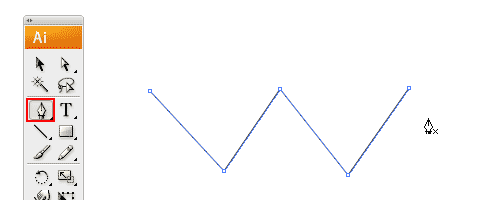
Select the Pen Tool and click once to add the first anchor point. Move your mouse to the next position and click again to create the second point. The two anchor points will be connected together. Continue doing this to create a W shape as shown.To draw a new line, click the Selection Tool(The Black Arrow Icon) and click back the Pen Tool again.
Closing a Path
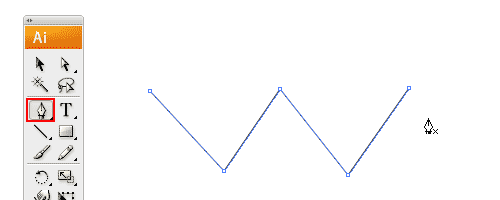
To close a path, click back the starting point to close the shape.

Drawing a Curved Line
Click and drag to put out the handles to create a smooth anchor point.

Changing Path Directions
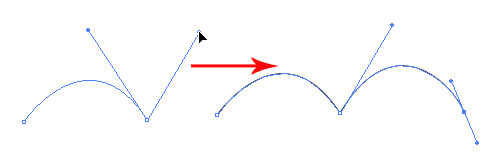
Click and drag to create a smooth anchor point. Without releasing your mouse, hold Alt/Option and drag the handle up to change the path direction.
Drawing a Circular Path
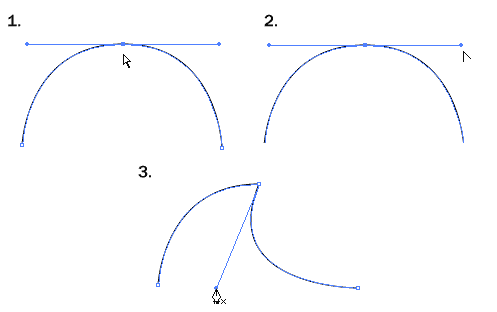
Click and drag to create a smooth anchor point. Continue adding points and click back the starting point to close the path.

Adding Anchor Points
With the Pen Tool selected, go near the path where you want to add a new anchor point. A plus sign will appear next to the pen, click on the path to create a new anchor point.

Removing Anchor Points
To remove point, move your Pen Tool close to an anchor. A minus sign will appear next to the pen. Click on the anchor point to delete it.

Converting Anchor Points
To convert a smooth anchor point to a sharp anchor point, move your Pen Tool near the anchor and hold Alt/Option and your Pen Tool will change to an arrow shape. Click on the smooth anchor to convert it to an anchor point. Click and drag on the anchor point again to change it back to a smooth anchor point.

Moving Anchor Points
Select the Direct Selection Tool and click and on anchor you want to move. Click and drag to change positions.

Changing Anchor Directions
With the Pen Tool, you can quickly change the anchor directions. Hold Ctrl/Command to quickly change the Pen Tool to Direction Selection Tool. Select the anchor point you want to edit. The anchor handle will appear. Now release Ctrl/Command and hold Alt/Option to change it to Convert Anchor Tool. Click and drag the handles to change the direction.
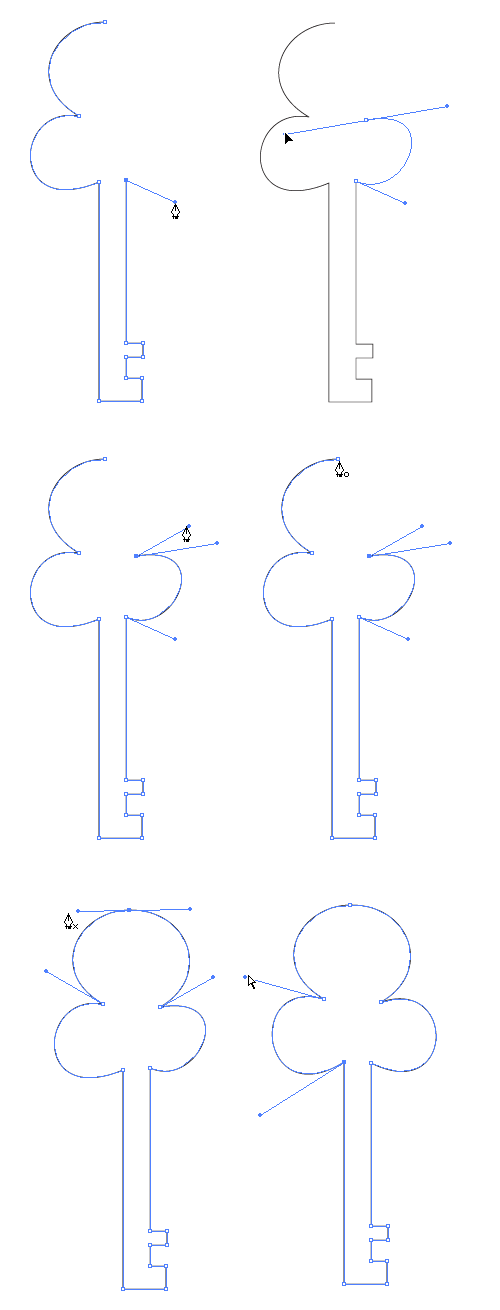
Drawing an Old Key
After learning the concepts of how the Pen Tool works, we will apply what you have learnt to create this ancient old key shape. For the right angles, hold Shift before adding anchor point to constrain it to 90-degree.

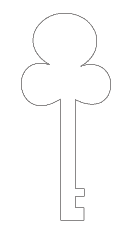
Final Illustration
This is the final illustration.
Tips for Using Pen Tool
- Use as little anchor points your need to create your shape
- Add anchor points where there is a change in direction of the line/curve
- Use shortcuts like Alt/Option or Ctrl/Command to quickly swap to other tools to edit your path
- Hold shift to lock your path while adding new anchor point for 45-degree increments.
More Training for Pen Tool
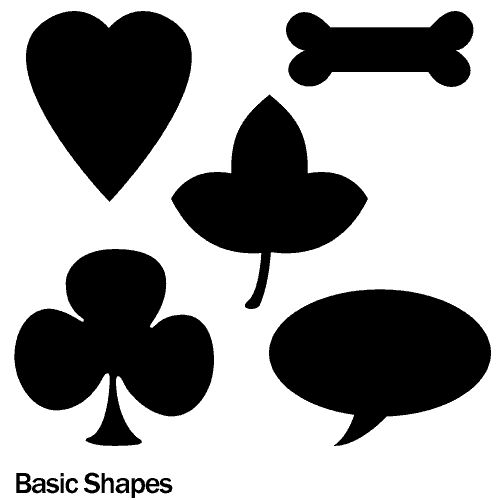
I have included more exercises for tracing using Pen Tool. Save it to your desktop and place it in illustrator by going to File>Place. Select the image and make sure Template is ticked. The image will now be faded and placed as a template. Now you can start practicing and don’t give up.

For a more comprehensive guide on using Pen, read this article.
Next Lesson: Using Brushes
Back to Illustrator Training Course
This is amazing. Thank you so much for doing this. I have a question though – when drawing an eye – should I just make 2 (left/right) points, then click and drag the handle to make the curve? or should there be like 3 points (one on the top, I mean)?
Hope that made sense.
Hi Candy, 2 or 3 points are fine. No strict rules, it depends on your preferences. I prefer drawing with 3 points, easier to make it symmetrical by controlling the 3rd point at the top. Try it and you will get what I mean.
Alright, I’ll try that. Thanks a lot.
wow! i love this illustrator walk-through tutorial… i’m learning new stuff about almost every tool so far. today, i learned how to change path directions. i’ve been doing work-arounds that are not nearly as nice. thanks so much!
Thanks a lot for this pen tutorial. I’ve been working with photoshop for a few years now but never really understood the whole pen thingy, anyway, keep up the good work. I’m really enjoying the illustrator tutorials!
Hello,
I’ve tried to practice drawing the shapes above. But I don’t know how to make the left and right part of the symetri shapes exactly same size and shape. For example the love shape, how to make left and right to be symetri? Could you pls advice…thanks in advance 🙂
don’t understand at all……….can record as a video and put on site like youtube, it will be more easy to understand
thank
Wow, my key sucks, hahaha. But I’ll keep trying with the basic shapes.
Thanks a lot for this!
Wow this was so much fun, I am getting the hang of this pen tool, loved the extra practice sheets and the method for turning them into templates, so useful, thanks again for another superb lesson
I thought I’d share my results of my hands with you teach!
http://i79.photobucket.com/albums/j144/chellesky62/Illustrator%20Classwork/pen_hands_csky.png
I don’t see the ticker to make it a template? Is this a CS3 issue or am I just blind?
Hi LadyUranus, Go File>Place. When the window pops up select the jpg you want to make as a template. You can see a checkbox with template under the file name. Should work in Illustrator 10 and above if I’m not wrong.
jah rasta blood claat man dis a good lesson aswell
I have been dabbling with Illustrator for ages and never relly got the hang of paths, this is the first time I have got my head round it – thanks.
Quick question, is there a way to add points to the end of an open path once it has been finished, ie. to extend it?
Cheerss
Hi Richard, A quick way to continue adding point is to use the Pen tool and click once on the last anchor and you can continue to extend your path from there.
Brilliant, thanks for that.
This is a great tutorial. I could never wrap my head around the Pen tool and then while i was working on this key everything just clicked! I have made the bone and the heart!
😀
This is such a brilliant tutorial, thank you so much for taking the time to do this. I have never used illustrator before and find this really useful. However I am kind of stuck now on the pen tool. I can create an anchor point and then another eventually close my square but if I got to make drawing a circular path but when I tried to close the path it would delete the starting anchor point. Any assistance as to what I might be doing wrong would be greatly appreciated.
Hi Kate, make sure the last anchor point is still selected before you click the starting point to close it. Or you can reselect the last point again and click the starting point to close it.
What an amazing tutorial, Pen Tool is no more a mystery to me! 🙂
Wow , really wow. This is a real turning point for me. And all thanks to the tutorials and template I’m actually learning the hellish pen tool O.O Easier than I thought as well. The templates are a real big help in learning, so much thanks for providing them. I don’t care how old this is .. it literally rocks regardless.
Much thanks and I hope to learn more as I follow more of the tutorials =)
Thank you so much, i have never really understood illustrator, but am now finally getting the hang on this! wish i had this when i was still at uni!!
This tutorial is being very useful for me, thank you for taking the time!
Is there any chance you could upload a video on how to draw rounded figures with the pen? I still don’t get it right… for me it seems to be going the opposite side all the time, am I right?
After putting it off so long I am finally getting the hang of the pen tool, thanks to this – my basic shapes are ok and actually look like what they are supposed to.
Thank you!
this is a great tutorial and i’m finally getting the pen tool more than i ever had in the past!!!! imitating the shapes is kind of difficult but i bet after more practice i would be good to go.
This site is wonderful by the way!!!! I love all that you’ve done
Thank you so much for this tutorial, you have a wonderful teaching “voice”!! Now back to practicing…
oh gosh, i desperately need to practice more of this pen tool. it keeps me in the darkness whenever i failed to do it. but i am re-learning illustrator right now. have to do it perfectly this time. THANKS A LOT!!!!
Excellent tutorial, i appreciate you taking the time to go over these basic things. im pretty comfortable with the ps pen but this is a little more difficult imho. i have one question i hope you can answer. whenever i move onto the next point, the previous curve i made disappears until i release the mouse button. is there anyway to always see the curves i make the whole time? thanks in advance.
Hi joey, most probably your stroke is set to none. That’s why you don’t see the curve you drawn. Try setting a black stroke to your lines.
hi there. nice tutorial! but is there a tool in illustrator where you can predict the path that will be made before you really make it? example, the “rubberband” option in photoshop’s pen tool. thanks!:)
Great tut. Most of the stuff I knew from practicing with the Pen and Photoshop, but having the templates at the end really helped to force me to practice with Illustrator (still a relative newbie to Illustrator).
Practicing this really helped me to understand the ‘magnetizing’ ability of the anchor points better.
Here’s my result with the Basic shapes:
http://www.flickr.com/photos/30175756@N05/3251244633/
I’ll work on the complicated shapes later.
Keep up the site!
Hi Allen, there’s no such tool. Instead before you release your pen, you can tell what shape it will take before you release.
Hi David, Learning fast.. Keep it up
Awesome! Thanks for this tutorial, it really helped a lot. I don’t know anything about the basics of Illustrator and with your tutorial you made it easy to understand and I acknowledge you when someday I’d be good in this.
Hi, thank you so much for this tutorial, you’ve explained everything very clearly, and I feel like I’m progressing really fast! I think I’ve got the hang of drawing images with the pen, but is there any simple way to make what I’m drawing symmetrical?
I’m stuck at drawing a curved line :/
Thank you for the information, i am learning a lot, regards from Guatemala city 😀
hi . thank you so much,you’ve expained very well
this is great stuff i get to learn some basic stuff that i was not aware of and i just love it
big ups
I am learner who is 40+ and was not very much confident weather i have chosen wrong path for expressing creativity. After going through your tutorial i am at ease. Thank you.
Great to hear that you are still learning at 40s. It’s never too late to start. Keep it up! =)
Thank you so much for the tutorial! I am just beginning to learn how to use Adobe Illustrator, and this has been very helpful. However, I’m kind of lost because I’m working on a windows PC environment, and I don’t have the “OPTION” key, can someone please tell me which key to use instead? Thank you!
For PC it is Alt key for Option.
WOW… Thanks a lot for this tutorial! I just love it! You rock!
Ej there, sory for my english becouse i’m a albania guy but your tutorials are very god. They help me to go bihaind in illustrator!
Thanx Sir!
Great tutorial! Thank you so much!!!
I need to learn Illustrator in the shortest time possible for work, and your tutorials are really helping me. Thank you!
this stuuf suck i hate it your stuuf sucks get a ife
Love your tutorials, thanks lots!
Where is your voice??!!!!! And It’s so dificulf… to me.
Only 2 picture. I need more pictures.
Thank you, thank you thank you! These tutorials are GREAT!!! I have been looking for a simple way to learn the basics of Illustrator. I have a book (purchased) that made it seem so hard! Thank you for providing this information and not charging an arm and a leg for it.
Great walk through, really enjoyed the basic practice exercise..
absolutely awesome!!! Great work pal. Many thanks for sharing your experience and knowledge.
I don’t get it at all, am I stupid? 🙁 This program is too hard for me, I can’t even do the beginner tutorials. 🙁 I can’t draw shit with this program, and this is not the first tutorial I try! 🙁 It’s so demotivating…
Very simple Language use in tutorial Thanks a lot for this tutorial!
Learned* Learnt is a completely different, off-topic word. Thanks though.
With the Pen tool, how to draw outline only by without filling the color, while practising with the Shapes at some point the shapes are not visible though… pls help me.. anyway thanks for the tutorial..
Thanks for this tutorial! Trying to brush up on my illustrator skills, and this has really helped! Really simple and easy to understand, brilliant!
Wowza. This tutorial is AWESOME. I’ve let all my fellow students and tutors know about it it’s just that good!
I do have one thing I’m stuck on though… How do I add extra handles? Sometimes I only get one and it makes it harder to manipulate the line 🙁
Using CS4 by the way 🙂
And well done again, you are LEDGEND.
wowwwwwww…..at last with hours of practice i almost garbbed the pen tooool……thanks man
god bless you
Olá muito bom esse tutoriais to tentando aprender (to apanhando bastante) mais com o tempo e pratica só ñ consigo mexer com os pontos no Ai pois trabalho com corel o dia inteiro a mais de dois anos com pratica e fuçando aprendi a mexer bem vou fazer o mesmo com AI obrigado pelos tutoriais
Really excellent.. I had been searching for long time.. Thanks for this post..
DAY5: Well, looks like it’s time to roll the sleeves up and actually do something a bit trickier….. Was sort of confusing at first but I’m getting the hang of it s-l-o-w-l-y I might be stuckon this page for quite some time until I become proficient (?) at all this anchor stuff. Obviously can’t move forward till I do….so here we go.
PS: Noticed in a comment earlier that someone said they were 40+ and trying to learn this – well, I’m 56 and willing to give it a go. What a trip this is….(so far)
Hello!
aahhhhh yes hhhhhhhaaaaaaahhhhh yes 🙂
Thanks dude. these are great tips on using the pen tool!
This is a great tutorial. I have only been using Illustrator for 2 days .. and today I got a digital tablet so I am struggling with a double whammy, but I am slowly getting the hand of it. Can do the key now, but have been struggling with the heart for about 4 hours now. I guess it is all a matter of practice … hours and hours of it.
Actually i have a problem in pen tool. Hope, i have no problem in this tool now. thanks, for the real live tutorial.
In the step “Drawing a Curved Line” (3rd step into the lesson), the instructions are to “click and drag”, but it doesn’t say with what. Do I use the Selection Tool or the Pen Tool or something else? Nothing seems to work for me. (I try to click to something different and the whole object disappears.) Also, is Path Tool (mentioned at the top of the article) and Pen Tool the same thing? Btw, I’ve looked at many different AI tutorials, and this is HANDS DOWN the BEST! You did a really good job putting this together and it is appreciated!
nameen?
our teacher used this to teach us and i find it fun and easy to use
I’m just stuck at the curves lines… seems I can’t draw nothing on the right side, only left. Help! Nothing seems to work… Should I continue with the other days or master this first?
It easy to learn and it very useful for beginers of illustrator. Note:should use pentool everyday thats make pentool easy.
Where do I download the Basic and Complicated Shapes?
Nevermind, I figured it out…
thank dude, u’re cool !
Any time I get towards the middle anchor point the plus sign or add anchor point shows up so I click it. But then it always tells me please use the add anchor point tool on a segment of the path. I’m so lost when it comes to step three. Does anyone know why it keeps telling met that? And would anyone be willing to explain in layman’s terms in a even more step by step how to do step 3? (PS this site is crazy helpful, thank you for puttin it up!)
I have a question about the Pen tool regarding some of your steps, above- I think I missed something somewhere. You say hold down Alt / Option for things like adding or deleting an anchor, and convert anchor point. I am confused about how one keystroke can do all of these- how does Illustrator know which one of the options you want, of Alt / Option does all three? Is there a way to pull up a sub-menu somewhere that I overlooked?
sir your tutorial is very simple i m complete illustrator in 15 days thankyou somuch sir
Tony, you are awesome. I’ve never had any formal training in illustrator, so all the work I’ve done so far has been guess-and-learn, but this is such a great foundation. Thank you!
holy crap this stuff is insane my teacher makes this stuff look easy
oh teri,,,,,,,,,,,teri ma ka saki nakaaaaaaaaaaaaa……..kya baaaaaat hai beduuuuuuuuu………….
oye lole , saley tu lola he raheo……….