


Learn to draw stars in Adobe Illustrator. I will be showing you the quickest way to create fast random stars using Transform Each Illustrator effect. You will be able to achieve great looking stars background in this Illustrator tutorial.
1. Create background
Select the Rectangle Tool, and draw out the background. Go to layers to lock it to prevent selecting it.

2. Add some stars
Add a new layer above the background.Using the Star Tool, draw a few stars and fill it with different shades of grey.

3. Create a row of stars
Select all the stars and hold Alt/Option to drag a new copy beside it. Repeat it by pressing Ctrl+D/Command+D until you get a row of stars.

4. Fill the background with stars
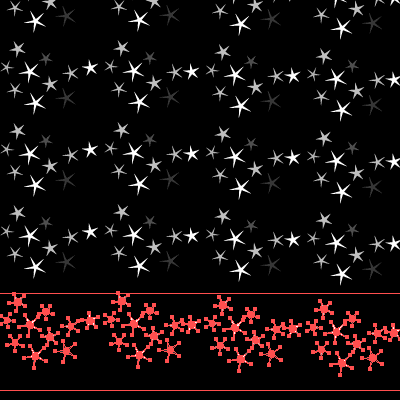
Select the row of stars. Using the same method above we repeat it downwards until our background is filled with stars.
5. Create random stars
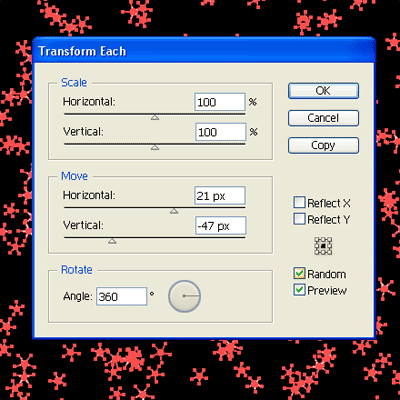
Go Object>Transform>Transform Each. Check the random option. Set both Scale (Horizontal and Vertical) the same value to make it proportion. Make sure the Scale is smaller to 50% to make it smaller. Select a random figure for move to make the stars offset it’s current position. Finally, Set Rotate to 360 to give it a random rotation. Now we have the image below.
6. Final touchup
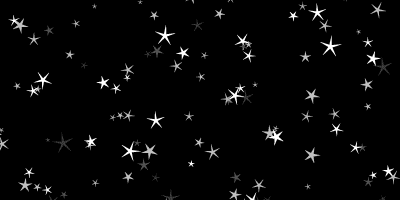
Select all the stars and and Transform Again (Ctrl/Command+D) to repeat the random stars transformation until we achieve the effect we like. Hope you enjoy this star tutorial!

To download the source file for this tutorial, you will need to login as a member.
Sign up today to access all exclusive members content!

Cool Tip~
Thanks.
celestial sky! how lovely. thank you.
Reaper: You’re spot on. These are some beautiful “web 2.0” stars 🙂 !
Very cool! Also works well with snow, confetti, etc. Thanks!!
neatness in Randomness
Helpful tips. Thank you 🙂
Very useful tip. Better than using the symbol sprayer which is hard to control.
Thank you for sharing your knowledge – I’m a student, and I appreciate your time and effort. Thank you.
Cool. Thanks.
it was confusing but i got it
Thank you so much!! this was very straightforward, easy and I absolutely love the effect!!!
simple tricks that give powerful solution.
thanks for the tutorial 🙂
Thanks very much for this tutorial. I knew there had to be an easy way to make a starry sky, but couldn’t figure it out on my own. This is exactly what I was looking for!
Very nice 🙂
Awesome! This is perfect. So much better then the sprayer.
Thnx for another great tutorial 🙂 I just started with illustrator, love it.
Thanks!! 🙂
Very awesome !! woooohoo
I always wanted to learn how to do this! Now I know. Thanks so much. Your GREAT!
Very useful tip, thanks
If you want to ensure the survival of your printed product, you need to create a product that is both necessary and sufficient. ,
Very nice and useful too 🙂
NICE tuts… keep sharing ! Superrr idea 🙂
this is exactly what i’m searching for thanks
Thanks! This is exactly what I needed and worked beautifully 🙂 Bookmarking.
Nice tutorial. Thanks for share.
this is brilliant thank you!