


Drawing vector silhouette figures using the pen tool is a long and painful process. However, with Illustrator’s Live Trace effect, you can now create silhouettes with ease. In this Illustrator tutorial, I am going to teach you how to prepare your images in Photoshop for Live Trace. Then, we will experiment with various Live Trace settings to create our silhouette. After reading this, you will be able to create better looking silhouette figures.
1. Tracing With Live Trace
To begin tracing using auto trace, we will need to have a high resolution photo. This gives a better and more detailed trace than a low resolution photo. Also, you will need to choose photos that have a white background or strong contrast with the background for auto trace to work. For this tutorial, I have download this free stock photo from stock.xgn which can be found here.

Go File>Place and place the photo on the artboard. Select the photo and click Live Trace. Simple Trace will be selected as default for the trace. You will notice that there are 2 problems with the trace. First, the darker tones of background sky is being traced and secondly, the hands of the girls are missing. Click the Options icon beside Preset and try adjusting the Threshold settings. You will realise that this can’t be fixed with it.

1. Isolate the Background to White
The way to solve this is to make the background white. This will will give you a better trace. Open up the photo in Photoshop and select the Magic Wand. Set the Tolerance of the Magic Wand to 32 and select the background.

Fill the background with white.

We will need to darken to photo to remove all the details on the t-shirt to get a perfect black silhouette. Go to Image>Adjustments>Levels and drag the midtone color to the far right.

This is our final image after we have adjusted. It looks ugly right now, but trust me that the silhouette is going to be fine. Save the photo as jpg again and replace it in illustrator again.
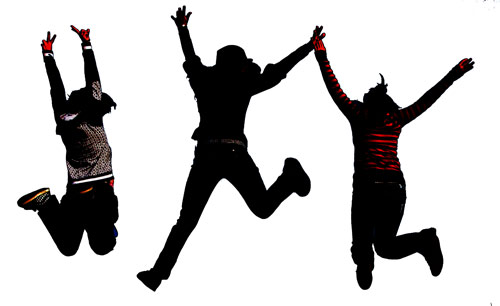
Now, select Live Trace again for the photo and you can instantly see the difference.


Open up the Tracing Options again to tweak the trace. Increase the Threshold to 200 to remove the white areas on the girl. I have also increased the blur to 0.2px to smooth the edges. Also check Ignore White to remove the white background from the trace. Experiment with other settings to see which settings give the best results. Below is an explanation of each features for Live Trace.
Preset – Preset contains a set of settings for some common traced effect. It is a good place to start to see which settings gives you the best effect before you tweak the others.
Mode – Choose you color settings (black and white, grayscale or color)
Threshold – The value to separate black to white. Lighter pixels are converted to white and darker pixels are converted to black.
Palette – Choose automatic color selection or you can define your own color palette.
Max Colors – Maximum amount of colors used to define the palette.
Output to Swatches – Save your color palette to swatches.
Blur – Amount of gaussian blur applied to your image. Higher value will smooth out edges.
Resample – Changes the resolution of the image. Set it lower to speed up computer performances.
Fills – Check to render Fill.
Strokes – Check to render stroke.
Max Stroke Weight – Specifies that anything larger than this value will be considered a fill.
Min Stroke Length – The minimum size of a stroke allowed.
Path Fitting – Lower values create tighter paths whereas higher values will create looser paths.
Minimum Area – The smallest details to be traced.
Corner Angle – The sharpness of the turn to be considered as an angle.
Ignore White – Leave white fill as transparent.
Preview – Toggle this to turn on live preview. Always turn it on to see your traced effect.

This is our final traced effect. There are some white areas on the first figure that needs to be cleaned up.

If you are using Illustrator CS4, you can select the Blob Brush and paint over it to cover up the white areas. Or else, you can use the Direction Selection Tool to delete the unwanted paths.

To clean up jagged edges, select the Smooth Tool and retrace the path to smooth it.

Here our final black vector silhouette. Now you can add in your Illustrator background effect.
To download the source file for this tutorial, you will need to login as a member.
Sign up today to access all exclusive members content!

That’s the proper way!
(which amazingly few people seem to actually use)
i’ve been using live trace but i haven’t tried tracing real images i usually trace black images. Thank you for sharing this very nice tutorial.
thats fun, I really love it.
Very nice tutorial, took me about 5 min. to finish it. 🙂
Better result with the pen tool and simpler too since I use the pen tool to cut out photos for a nice, clean edge.
It would seem easier to instead of filling the background with white, delete the background, then fill the girls with black in Photoshop. That way you won’t have to worry about doing blob brush fills or selecting and deleting. But the great thing about these programs is there’s so many ways to do the same thing, and each of us develops our own unique techniques.
@Chris McDougall:
Yeah, I thought the excact same thing (since it’s a part of my workflow) when reading this post.
Actually, once you’ve got the background selected in Photoshop you can simply invert the selection and convert the selection to paths.
Now take your path(s) and move them into Illustrator (Export > Paths to Illustrator) and do whatever you’d like with them, including touch-ups.
Using Live Trace after having already made a near-perfect outline via selection in Photoshop is just superfluous.
I am so glad for this information thank you all so much. I am fresh out of school and as you know that’s when the real schooling and learning begins with the practice.
Peace to you all!
Great tutorial, though I do have a question about the marketing you get on your third last picture, how do you mark the girls so you can use the Smooth tool? I must have missed something.
What if you have a silhouette where some parts bleed into white and I still want those parts to be white but the background to be another color. For example I have a face with a high exposure so that one of the cheeks are white and the program recognizes that as background.
I want to make a colored background but still have the white areas of the silhouette.
How would you do this?
Thanks!
Hi Ville, you can darken the face using a brush in photoshop on the bright areas so that auto trace will make that area black.
Cool… seems simple and is gives a great result!
Great post. Now live trace becomes so simple to me. Thanks for the tutorial.
Good tutorial. I only think that the blog too might give a confused result. I would prefer to manually join those white areas in order to make them disappear. Not easy, though…Wht’s your opinion on that? Great post in any case, eh! Thank you!
Hi there everyone, it’s my first go to see at this web page, and piece of writing is actually fruitful in favor of me, keep up posting such articles.
It’s going to be ending of mine day, however before end I am reading this wonderful piece of writing to improve my know-how.
Tremendous issues here. I’m very happy to look your article. Thank you a lot and I’m looking forward to touch you.
Will you kindly drop me a mail?
Greetings! Very useful advice within this post!
It is the little changes that will make the greatest changes.
Many thanks for sharing!
Great info. Lucky me I ran across your website by chance (stumbleupon).
I’ve bookmarked it for later!
Wow! After all I got a weblog from where I be able
to genuinely get valuable data concerning my
study and knowledge.