


There are times when you will need to do vector gift box and effects for special occasions. This Illustrator tutorial will give you an idea how this can be done using brushes and some other techniques. I will not be going into details how each step is done but I will illustrate on some of the techniques used to create this vector gift box illustration.
1. Breakdown of Layers

The illustration consists of 6 different layers. We will look at how each layer is done.
2. Background Layer
The is the background mesh of the illustration. First we create a blue square and we start adding points using the Gradient Mesh Tool and tweak it to the the shape below. You can see that I have set the bottom points to a darker blue and the middle point to white. If you have difficulty creating this gradient mesh, take a look at my Gradient Mesh tutorial.

3. Gift Box
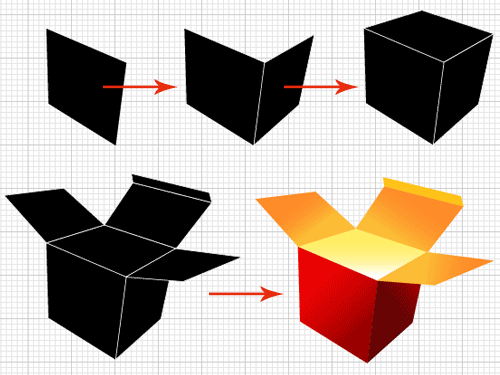
Drawing the gift box is pretty simple. All you need is the Pen Tool. A tip for beginner is to turn on the Grid (View>Show Grid) and Enable Snapping(View>Enable Snap to Grid). With the grid on, you can precisely snap each points to the grid so that each intersecting shape will line up perfectly.
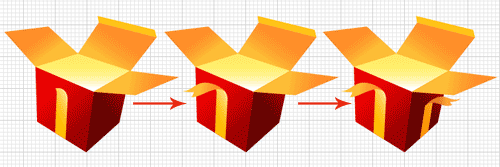
After you have drawn the gift box, fill it will different gradients to give the box volume. Finally, draw the ribbons to complete the illustration.
Here is the final gift box.

4. Line Patterns
For the line patterns on the gift box, you will find that there are actually some perspective. We can easily achieve the effect by using the Blend Tool. Below are the steps on creating it…
First we create a long rectangle and place it at the start point(left side). Next, we duplicate the rectangle and rotate it slightly and we place it at the end point(right side).

Select the Blend Tool. Click on the left rectangle stripe and hold Alt/Option and click on the right rectangle stripe. If you do it correctly, it would pop up the Blend Options. Select Specified Steps for Spacing and enter a value of 7.


This is what it will look like after we applied the blend correctly. Next, we need to expand the blend. Go Object>Expand to expand it into individual shapes.

Finally, we need to trim off the exceeding shape. Copy the rectangle face on the gift box underneath the stripes. Press Ctrl/Command+F to paste it in front. Select both the pasted shape and stripes. (simonsezit.com) Open up Pathfinder and hold Alt/Option and select Intersect Shape to trim away the protruding areas. After that, we apply a gradient to the shape to achieve the effect I have done for my stripes.

5. Swirl Explosion
The gift explosion effect can be easily achieved by using the Brush Tool.

Let’s start drawing our swirly lines using your Pencil Tool or Pen Tool. Make sure you draw from one single direction, so that when you apply the art brush it will point in the same direction.

Next we will create the brush by drawing a long triangle stripe shape. Open up your Brushes Palette and click New. Select New Art Brush when the option pops up.

Finally, we select all the swirly lines and apply the new art brush we have made. (If the lines are going in the opposite direction, you can double click your Brush in the Brushes palette and check Flip Along to swap the direction.) You notice that I have varying widths for my swirly, you can do this by selecting each individual swirly and setting the line stroke to a smaller/bigger value.

After you are satisfied with what you have done. Go Object>Expand Appearance to expand the swirly. Open up your Gradient Palette and apply different gradients to your swirly to finish up the swirls. To hide the unwanted parts we can mask it out.

6. Fairy dust

If you have no idea how to achieve this fairy dust effect in less than 3 mins. Then you better check out my Starry Night tutorial.
Hope after reading this tutorial you will have a better idea on how this illustration is done.
But that’s okay, go ahead and delete my comment. I’m still sick of half-a$$ed Tuts…
It is splendid
you S-U-C-K!
when u can’t go into the detail, then why the f-u-c-k you’ve brought your stinky a$$ into the tutorial writing
Hi Owais,
I’m sorry if you didn’t find this tutorial useful. When I’m writing this tutorial, I just want to illustrate some of the techniques on how the effect is done. I didn’t want to go into details as how to draw the gift. Now, I understand what the readers needs, hence I have improved on my recent new tutorials. Thanks for your comments, I will improve on my new tutorials.
Nice tips and tricks.. Owais Khan and Paul don’t appreciate this Bcoz they don’t have initiative. they must respect the writer… 🙂 by the way… it’s a nice tutorial…
Thanks for the tutorial. It’s a great concept. It is actually meant for intermediate who understand the basics of illustrator not for beginners.
The tutorial is nice, man i got to get my illustrator up and running anyway, i understand Paul and Owais khan. They just really wanna learn the basics as well, you should maybe create categories like Basic intermediate experts and just fill the Basic with Basic setups of tutorials such as how to make this line how to make this effect. That way they can take all the effects and create some splendid masterpiece.
The Tutorial was awesome and i learned a lot 😀
With warmest, steini
Can you pls. send me the AI file for this E-mail “[email protected].
I waiting for your replay.
Thanking you
Hi Jam, as this file is a stock vector sold at istockphoto, I cannot send it to you. If your are interested to use it for your project, you can buy it at stockphoto. The link is at the end post.
have a nice day !
thank you for your replay
by
this is so stupid. the only hard thing about this is make the box and you wont even show us how to do it. you should just take it off the web site.
This tutorial is excellent and you sami are so lame if you do not know how to draw a box. Better give up on using illustrator.
i thnk its quiet a decent tutorial but the thing is..even if makin da box is easy..da process should hav been explained coz many people lukin for tutorials are freshers. neways..nice job.
Very nice and easy to understand tutorial. Thanks!
@Roli: Even though I can understand your post, you should take the time to spell correctly. Thx
Thanks, I will be careful next time.
Great tutorial!
not only have you given steps for various effects, but given an insight to the thought process involved in developing such a piece.
Keep up the good work…….and remember: More people appreciate the effort that you are taking to create this tutorial than the few who have nothing better to do than criticize.
just atach a file with the shapes, or the final thing.
You can upload it on many file shareing servers.
Hi Joro, if you like the illustration you can buy the source file from istockphoto. The link is located at the end of the post.
Thanks for puting those tutorials up and please dont consider those lame comments as serious as the writers probably never tried to do a tutorial and dont know how hard it is.
Tutorials are not for beginners who bought AI and just want to start making arts right away. You should first learn the basics and experiment making art by yourself. When you feel you are missing something or that you want to make things easier then you depend on others’ experiences.
Thanks Tony for your tutorials.
indrajit…. there is no need to use such bad language… Shows what sort of a person you are. If you don’t like the ‘kiddie suff'(gift boxes) you do not need to show it with such disrespect. If you can’t appreciate other people’s talent.. then i am sure you have none yourself
perfect! so manny tips in an article 😉
This is a very useful tutorial. Nice job, and keep it up. 🙂
this is more an inspiration post then a tutorial. you set the picture, but not how-to, that’s what a tutorial should do, right?
love this image.. can i use it on my blog?
Hi Kaber, my image is royalty-free. Click the buy source file from istockphoto. Once you have purchase the image, you are free to use it on your site.
Hi, I like this tutorial, especially the stars and fairy dust effects. If you can also give tutorial on making a box and the design, I think that would be better. Christmas is coming, so not only the image is necessary, but also the real box. You can use the design on six sides of a box. But I believe you would have to write quite a lot for the whole box design tutorial, though.
And one more thing, I would like to ask:
I found this image, “gift_surprise.jpg” from Creative Commons Search. Does it mean that this vector graphic can be used free of charge? I’m sorry that I don’t know much about photo copyrights.
Hi Yanto, I have added a quick screenshot of the box drawing process. However, the image is copyright protected.
If you would like to have a Christmas gift box illustration. I have another similar surprise gift box made for Christmas. You can find it here: http://www.istockphoto.com/file_closeup.php?id=7429387&refnum=illusime
It’s a very nice tutorial for me, thanks for your job.
nice tut. wud help though if you had a “basic” category
The tutorial is goog. Thanks
i love it thanks 4 empowering more
Thanks for the tutorial it’s pretty good.
Excellent. There are many useful tips in this tutorial. Thank you for sharing.
I KINDA AGREE WITH EVERYONE. I TRIED MAKING THE SAME THING N I COULDNT BECAUSE YOU DIDNT REALLY GO INTO DETAIL AND IT REALLY WASNT A STEP BY STEP BUT I DID LEARN A FEW THINGS SO ALL IN ALL IT WAS OKAY.
hey this is cool. ur tutorials are great. we use ur site in tech class yaaaaa
its nice i learned well
thank u
send me some more picture to get idea
muito irado…
excuse me,can i know how to make confetti?
excuse me ,can i know how to make this beautiful confetti?
this tutorial is useless. it shows the laziness of the author. hey, lazy writer, stop writing. keep your knowledge to yourself because no one can follow your so-called tutorial. it is not tutorial at all, it is only a show-off.
Maybe Yuri needs some basic tutorials. It seems you are in the wrong site. And there is not need to be so disrespectful. I bet you can not make a better tutorial by yourself.
Thanks For Ur Support
could you post the link to this particular image on istock again please? Spenty some time looking but can’t lovcate it.
Tx
thank you STB 😀
btw STB, i love you 😀 lol as a frieeend
nice tutorial thanks….
Good tip! At these prices who can complain.
Wonderful blog! I truly love how it’s uncomplicated on my eyes and the details is well written. I am wondering how I can be notified whenever a new post has been made. I have subscribed to your rss feed which should do the trick! Have a nice day!Also welcome to my website
Gift Box Wrap Tutorial
Can you please share the PSD file of it?
this so stupid!!!!
For those people who don’t understand these tips. You must learn how to do it in Illustrator. I thank the author for I it helped me some tips like the grid that I didn’t use before. Please refrain from making bad comments! If you don’t like it then why read this tutorial anyway? You can actually ask some more specific questions not some f*** comments. If you guys don’t know how its being done then go ahead and download the link.
To Tony, thank you for this… Keep up your tutorial and tips… more power! Don’t listen to faggots… 🙂
Thank you, for all the nice ideas, tips and tricks.
Okay tutorial, but you did definitely leave out a lot of steps. Most notably the entire confetti layer seems to be conspicuously absent… But it sounds like your future tutorials are more in-depth. And I did learn some things, so thank you.
My coder is trying to convince me to move to .net from PHP. I have always disliked the idea because of the costs. But he’s tryiong none the less. I’ve been using Movable-type on various websites for about a year and am nervous about switching to another platform. I have heard excellent things about blogengine.net. Is there a way I can import all my wordpress posts into it? Any kind of help would be really appreciated!
This is just a short steps to create that illustration.
Its ok, sometimes I cant go in details…
Please try explaining the lessons in details, or provide references to another sites tuts.
Hi
thanks for tuterials. it;s a great idea .thanks
Nice Idea.. I am very impress.
Wow this is a GREAT GUIDE!!!
I love the fish and the present, really cool!
great .
Hi to every one, for the reason that I am in fact
keen of reading this webpage’s post to be updated regularly. It includes fastidious data.