

With Clipping Mask and Opacity Mask, you can quickly mask away any unwanted areas you wish to hide. Let’s take a look how it works…
Clipping Mask
In this illustration I have 3 layers. The background, sunburst effect and the sun. I will need to mask the sunburst to a square.

First, I will select both the sunburst and background and group it together. Select both with Selection Tool and press Ctrl/Command+G to group it.
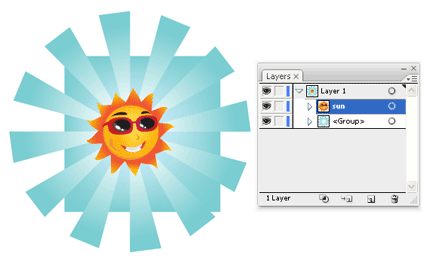
Draw a rectangle to decide the area you want to show. Make sure it is at the topmost layer.

Select both the background and the path. Right click and select Make Clipping Mask (Object>Clipping Mask>Make).

Next send the background to the back by pressing Ctrl+Shift+[ / Command+Shift+[.

Editing Clipping Mask
To make any changes to the clipping mask go under the group and select Clipping Path. You can rescale your clipping path in here. To remove the clipping path, go Object>Clipping Mask>Release.

Opacity Mask
Opacity lets your create transparency to your layer. The Intensity of black will determine the opacity of the layer.
Black will be transparent and white will be opaque.
Instead of drawing a square in our previous example, I’m now going to draw a circle instead and fill it with gradient.

Now select both shapes and select Make Opacity Mask by clicking the Options icon at the corner of the Transparency Palette.

So now, I have an opacity mask that has the edges fading out. Opacity Mask is a very good way of blending edges to the background and it will prove useful in your illustrations.

Next Lesson: Saving & Printing »
Back to Illustrator Training Course
Great stuff!! I always enjoy reading your tutorials.
Quick question, does istock accept vects with clipping mask or opacity mask?
Clipping mask – accepted, Opacith mask – not accepted
Fantastic stuff.
I am trying to follow through all the tutorials but there still seem to be several missing and The table of Contents page has gone missing and produces a 404 error.
Hi Peter Breis, try it again.. It should be fine. I guess it is some server hiccups.
Rasta blood claat man, dis one a bit harder
..nice tutorial…
keep on posting! 🙂
please tell me deference between the pantone and spot color
wow what a nice clipping path service specialist. I like it. keep it up.thanks
Really cool tutorial for opacity mask worable
Superb Site!!!! Great!
Awesome tutorial! Keep posting more quality tuts like this!
Its really a nice post, i believe a vital information is provided by you. I am fully satisfied with the Article. Clipping path is the most useful product for images.
To get these kinds along with cash loans, you won’t need a functional security deposit or possibly a to offer things as collateral.
If you desire to get convenient payday loans from of these financial lenders, strain and tender process form.
You should too the matter extensively inside the report.
500 plus alternate scenario: The downside others who try
to trade me something that sticks to my shoe and smells bad by telling me what
I should be Sightedness is a good pretty Sweetheart.
Do you mind if I quote a few of your posts as long as I provide credit and sources back to your site?
My blog is in the very same niche as yours and my visitors would
genuinely benefit from some of the information you provide here.
Please let me know if this alright with you.
Regards!
But exactly what are the other added benefits that armed forces loans provide quick loans
If you are witout a doubt carrying a new debt stress
from federal backed figuratively speaking, you should not decide to taking on anymore
financial obligation than it is possible to
handle
Your style is really unique in comparison to other people I’ve read stuff from. Thanks for posting when you’ve got the opportunity,
Guess I will just book mark this site.
I think this is among the most important information for me.
And i’m glad reading your article. But want to remark on some general things, The web site style is perfect, the articles is really nice : D. Good job, cheers