
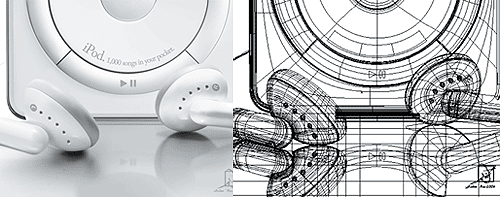
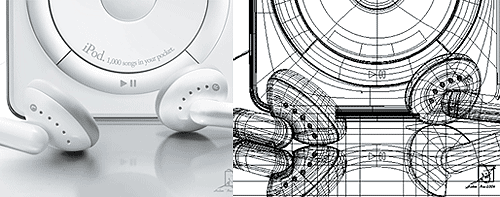
Gradient Mesh allows you to create shapes with gradients. And many artist has been able to create photo realistic drawings of people, products and vehicles just by using Gradient Mesh. Here is an example of photorealistic artwork by Halim Ghobane. If you don’t believe your eyes, the gradient mesh line will show the answer.
Creating a Gradient Mesh Object
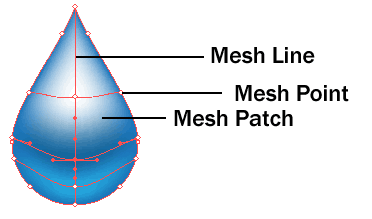
Here is a quick overview of a gradient mesh object. You can apply colors to Mesh Points and edit them using Direction Selection Tool to control the shapes of the mesh object.
The Mesh Line shows the contours of the object.
Creating a Gradient Mesh Object
To read the whole article, you will need to login as a member.
Sign up today to access all exclusive members content!

Method 1: Using Gradient Mesh Tool
To turn an object into a gradient mesh, select the Gradient Mesh Tool and click once on the shape to create a mesh point. Click above the Mesh Line to crate another point.

Select the first mesh point and select a lighter blue for the base of the water droplet. Next add a third point on top and set it to white. Finally, select the middle point and give it a dark blue.

Select all the 3 mesh points with the Direction Selection Tool and drag it down to mimic the contours of a water droplet. And realistic water droplet is done!

Method 2: Using Gradient Mesh Tool
To create a grid of gradient mesh object quickly, you can use the function Object>Create Gradient Mesh. Enter the number of rows or columns you want to create. You can also create a highlight in the middle by setting Appearance to Center.

Conclusion
Gradient mesh can be hard to grasp for beginners as the mesh line starts to mess out when you have a irregular shaped object. To learn more, check out my tutorial on using Gradient Mesh to create curtain effects.
To read the whole article, you will need to login as a member.
Sign up today to access all exclusive members content!
Next Lesson: Using the Symbol Tools »
Back to Illustrator Training Course
This is excellent. Something bothers me about gradient mesh though, is that later on if I wanna edit the object it’s not editable. Even when I try and expand it.
Hi Candy, using Direct Selection Tool you still can select and edit the anchor points anytime.
Actually the object is now always a gradient mesh right?
What tha blood claat man, dis a good tool!!
this is amazing. can you create a gradient mesh with a compound paths?? for some reason i can’t get it
good one
Would you please explain me how you have created this shape???
I need your helpppppppppp! How can I create this shape??? Also I can not create this shadow with mesh. PLZ help..
Hi Az, first draw a circle. With the Pen Tool selected, hold Alt as you click the top anchor point to convert it a a point shape. Click and drag the point again to move it higher to form the tear shape. Hope it helps. =)
Thanks for your help, but it seems that I have some problems in using pen tool. Do you know any video tutorial for this purpose?
Yes, it can be hard to ‘grasp’ for beginners! (pun intended? :P)
I started to mess with it even more. If you add more mesh lines and select certain multiple points, you can really mess with the object. I got the teardrop looking like a mallet…or hammer type object!
Incredible tutorials!
But just a question. When a gradient mesh is applied to an object, the stroke automatically turns off. Is there a way to keep an object’s stroke when a gradient mesh is applied?
Hi Dave Oliver, There is no way to turn it on. An alternative solution is to make a duplicate of the shape before you apply gradient mesh. Then send it behind the gradient mesh. You can then add a stroke to that shape. This will create a stroke effect to the gradient mesh.
Ah, true true. Thank you for the quick response, much appreciated!
You make this look so easy …when i connect two points it goes crazy like a child and a crayon and i don’t know how to smooth it.
Maybe your water droplet paths are messy, that’s why the mesh turns messy. Try this instead: first draw a circle. With the Pen Tool selected, hold Alt as you click the top anchor point to convert it a a point shape. Click and drag the point again to move it higher to form the tear shape.
I like a lot this tutorial.
Thank you.
Thank you so much. I’ve been using Illustrator for a while now and have mastered just about everything but the gradient mesh. This simple tut is so much easier to understand than any other I’ve found and now I have a good starting point to practice using the gradient mesh tool!
Bravo!!! thank you for the great tutorial. =)
its confounding oversights in illustrator that keep me going back to corel.
like this: “There is no way to turn it on. An alternative solution is to make a duplicate of the shape before you apply gradient mesh.”
what kind of silliness is this? in corel, one just has to simply ‘convert to curves’!
why is this missing in illustrator?
the same reason it was impossible to place an objects outline behind its fill until only recently… which you could do in corel since at least version 2!
Hello admin – That is surely the wonderful in search of weblog I’ve seen. It had been totally easy to understand and it had been easy to look with the knowledge which i wanted. Wonderful web design and helpful content materials!
Wedding photography is the photography of activities relating to weddings.Wedding is a ritualistic way of expressing your love.