


Christmas is coming and it’s time to make greeting card. This tutorial will teach you how to draw a snowflake pattern in Illustrator to spice up your Christmas design. You can also use this technique to create any snowflake pattern you like!
1. Drawing the Snowflake
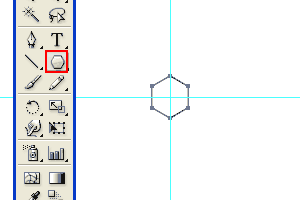
First turn on the rulers by pressing Ctrl/Command+R. Next drag out 2 lines from the Rulers to form an intersection. This will be the middle point of the snowflake. Select Polygon Tool and click the intersection point while holding Alt/Option+Shift to draw a Hexagon. Give it a thick stroke and set the Fill to none.

Next, select the Rounded Rectangle and click on the canvas once to pop up the Options window. Set the Corner Radius to 2mm. Delete the shape after that.

Using the Rounded Rectangle, we will draw the stem of the snowflake as shown above.
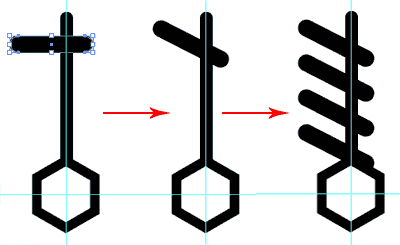
Draw another branch, branching out from the main stem. Rotate it to an angle of 30 degrees and duplicate 3 more branches by Alt/Option drag the first branch.
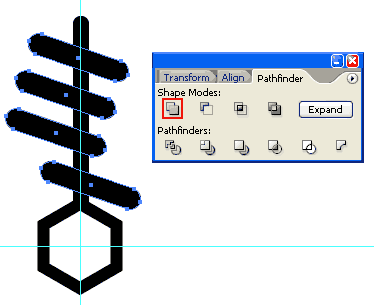
Adjust the individual branches to form the snowflake pattern you want. Then select the 4 pieces and go Pathfinder and click Add to Shape.

Using the Rectangle Tool, draw a rectangle to cover the areas protruding from the center of the branch. Select both the 4 branches and the rectangle. Click Minus to Shape to delete the protruding shape. Click Expand after that to expand the shape.

To reflect the pattern, select the Reflect Tool and Alt/Option click the horizontal guide. An Option window will pop up. Select Vertical for axis and click Copy to duplicate a mirror of the pattern.

Select both pattern and hold Alt/Option as you click Add to shape from the Pathfinder.
2. Creating the Snowflake Pattern

Select the Rotate Tool and Alt/Option click the center of the snowflake. Enter 60 for the Angle and click Copy. Click Cttrl/Command+D a few more times to repeat the rotation until you got 6 branches.

Here is the snowflake effect.

Select the pentagon at the center and go Object>Expand to expand the stroke. You will notice weird triangle points coming appearing at the corners. To solve this, click Merge once in the Pathfinder.

We will now combine the shapes. Select all the shapes and go click Merge while holding Alt/Option.
3. Glowing Snowflake Effect

Next, draw a background with a radial gradient fill. Set if from dark blue to bright blue in the middle of the background. Select our snowflake and fill it with white.

Go Effect>Stylize>Outer Glow. Select Screen for Mode and set the color to white. Set Blur to the amount you like.

Here is the final snowflake with glowing edges. You can use this method to create different snowflake patterns for your Christmas card. Have fun!
To download the source file for this tutorial, you will need to login as a member.
Sign up today to access all exclusive members content!

I’ll be sure to try this one, thanks!
great tutorial – thanks a lot!
wow! brilliant! i like the way you do it.
Very simple, but impressive done job!
I am new at this and I really like these tutorials.Thank you
Very nice! Thank you for the toot 🙂
whst a biggtt help\\raweerrrrryyyy
Cool tutorial. Thanks.
Thanks, this helped me with an icon I was making. 🙂
Superb a great help for learners
Simple and great tutorial. Waiting for winter holiday!
The outer glow effect really made big difference. Thanks
Awesome, thanks for the tutorial.
I’ll practice it later.
Just what I was looking for. Thanks
nooo..im joking….thanks this is very useful i learned how to do them its great!Thanks a lot
😛
Good tutorial, but please give out more information about size and so. Maybe make a video 😀
This tutorial was great! I made a wonderful snowflake.
i wish it gives you a video to watch!! but cool