

Transparency effects open the door for designers to create eye catching effects. You can add transparency to drop shadows or apply blending modes to objects to enhance your illustrations.
Adding Transparency
You can add transparency in Illustrator by lowering the opacity of objects so that underlying artwork becomes visible. Go Window>Transparency to open up your Transparency Window. Stack a few objects and set it to a lower opacity of 50% for the underlying color to show through.

Blending Modes for Objects
If you are familiar with Photoshop, you may have heard of Blending Modes. Blending modes let you vary the ways that the colors of objects blend with the colors of underlying objects. Here I have an example of 3 popular blending modes to show you the effect. I shall not go through how each blending mode in detail as it is quite technical for beginners. If your are interested, you can read Adobe livedocs here.

Button Reflection Using Screen
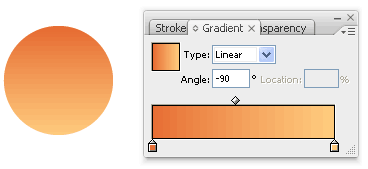
Screen blending mode is one of my favourite as it allows me create reflection effortlessly. I will be showing you a popular technique on creating a button reflection using Screen. First draw a circle and apply a gradient of light to dark orange to it.
Draw another circle on top and apply a gradient from black to white.
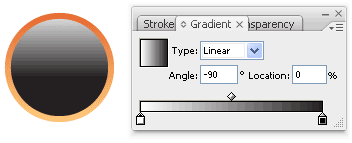
Finally, select the black to white circle and change the blending mode to Screen. And you’re done!

Applying Graphic Styles
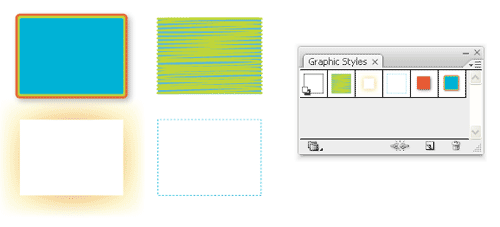
Illustrator has some built in graphic styles which you are quickly apply to your objects. It is like a saved set of attributes. Once you have created an object style, you can apply it across different objects.
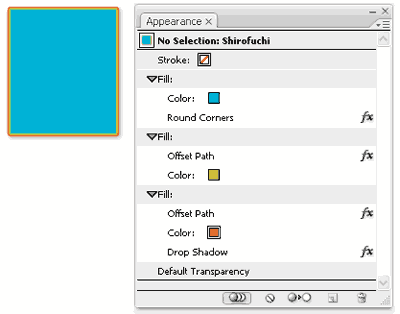
To see the attributes of an graphic styles, go Window>Appearance. Here we can see that there are 3 fills with effects(fx icon) applied. We will learn more about using effects in the later lessons.
Next Lesson: Transforming & Moving Objects »
Back to Illustrator Training Course
i read all of your tutorial and can i ask that is that u use mouse to draw?
coz i draw so many time using mouse and all result are bad….
Yup, all done using mouse. Complicated shapes can be built from basic shapes or using Pen Tool. There’s no need by drawing tablet.
Once again, I miss something. In Button Reflection, when I choose Screen for the black-white gradient circle, it simply turns white. I can make it work with Soft Light, but not Screen. (I’m using CS3.)
I’m having the same problem as Heidi –the black portion of any gradient turns white instead of transparent. I’m guessing that maybe it’s a CS3 thing cause I’m using that as well…help please!
You should update the bottom of this article with the next days lesson. It says “Next Lesson: Coming Soon…”
same problem as Heidi and DM…. please respond
Hi BogDinamita, no problem on my side. I’m also using Illustrator CS3. Make sure the gradient is from black to white. Black areas will turn transparent, while white areas will turn white after you change it to Screen mode. Hope it helps.
rasta blood claat man good lesson, true dat
@BogDinamita I think is the mode (CMYH/RGB). Use RGB.
nope. i have the same problem as above
I am having a problem too. The circle turns white. What is up with that?
Hi Ben, go File>Document Color Mode>RGB Color. It should do find now. I suppose CMYK doesn’t support transparency effects.
I did the highlight example, but I don’t get the result you do with Screen mode, I even tried reducing opacity. I got a better result with soft light.
:oP ?
I had the same problem, but changing the document color fixed it
Hi Vectordiary thank you for all awesome tutorials 🙂
I must say thank for taking the time to do this…really appreciated it…for all who are having problem’s just go to RGB mode in file document color has he said
hi there, total beginner and having trouble switching gradient fill to rgb mode and not black and white im on cs2. Any help would be great cheers! 🙂
My gradient only goes from color to transparent, how can I change that??Im using cs5
after i change it into RGB color, it works. 😀 thank youuuu 🙂
Thanks, the RGB mode fixed the problem for me as well 🙂
Day12: Again, a nice straight forward lesson showing how to blend stuff and make it see through and a combination of all that. I liked this one as much as the color lesson – but that’s probably because it didn’t tax my brain too much. Not confusing or complicated – which I like. OK, it’ll be interesting to see the next lesson – Day 15.
PS: I just worked out (by looking at the Crash Course Index) that the missed Days are for the weekends. Doh! Should have realised this huh?
Great tutorial so far! I’m learning things I never knew even existed, and look forward to going through the rest of the lessons. Thanks for an awesome tutorial!
yea its true, u must be in rgb mode as u teacher said, i had the same problem but after changed the cmyk to rgb all gone right
at first i worked on CMYK mode, tried the transparency but it’s not working, changed it to RGB, and it worked fine, the funny thing is, I switch the mode back to CMYK, but the transparency is still there, as in RGB, though I noticed some minor changes in the gradient. How do you explain this?
(I’m using CS5)
Hello and thanks for these tuts – i just found them today. I have CS educational version and it seems that i can only use a gradient in black and white. There are no options when i click on the top right arrow of the palette for colours. Is this because of my baby version, or is there another way of getting colour gradients?
Wow, incredible blog layout! How long have you been blogging for? you make blogging look easy. The overall look of your website is wonderful, as well as the content!
Transparency & Graphic Styles
i create a black circle and move to orange circle. And i use transparency and set the screen mode, but i can not make the black circle to become transparent. The black circle become white circle. i hope other people to solve the problem. Thank you very much for your help.
In File > Document Color Mode change to RGB if you want Screen Blend Mode to work…otherwise, if CMYK is selected, I read that you need 100% black (CMYK black C=100 M=100 Y=100 K=100).Hope this helps someone.:)