

Using the Brush Tool, you can add styles to your lines. It can also be used to mimic calligraphy, crayon and brush strokes. This will help you add more life to your line works.
Applying Brush Stroke
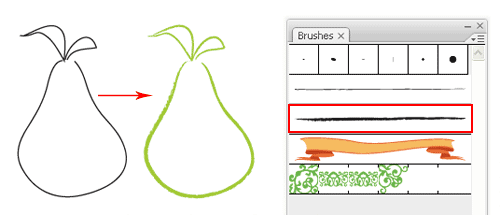
Select the Brush Tool and draw your object. Then go to your Brushes Palette and select the crayon brush to apply the effect.
Calligraphy Brush Stroke
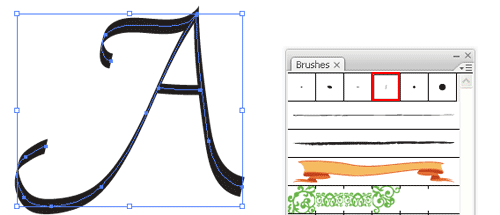
To apply a calligraphy brush stroke, draw your path and select the calligraphy brush. Increase the Stroke to make it thicker.
Calligraphy Brush Options
To make changes to your calligraphy brush, you can double click the Calligraphy Brush to pop up the calligraphic brush options. Drag the brush to change the angle in the thumbnail. Change the Diameter makes it thicker.

Create a Border Pattern
Draw a rectangle and pick the border pattern. This will create a frame for it.

Creating a New Pattern Brush
To crate a new brush. Draw a Star and drag it to the Brushes Palette. A New Brush selection appears. Choose New Pattern Brush for it.

Applying Pattern Brush
Draw a circle and apply our new brush stroke.

Next draw a line path and apply the brush stroke. Double click the star brush from your brushes and set Scale and Spacing to 20% to get the effect below.

Brushes are very good for aligning objects and creating borders. So experiment with it and have fun!
Next Lesson: Creating Compound Paths »
Back to Illustrator Training Course
woohoo I can now make my own brushes, another excellent and easy to understand lesson, tyvm
Good lesson! Thanks 🙂
just wanted to say thank you for having this great 30-day tutorial. i have wanted to learn illustrator for a while but it has always seemed too daunting to take on. you have made it really simple and easy to learn. thank you! ^_^
Thank you for the excellent lessons, really helpful!
blood claat man dis lesson is good to understand. jah love
i’m not jamacian but i second what leroy says…i’m loving (and learning!) these lessons
Thank you for your support!
This is awesome! Great lessons!
Great website and Great way of Explanation….Thank You so much
First of. great tutorial. nice organising it and making everything seems easy doing
but i have trouble. how do you use the brushes on a picture i’ve taken with my camera?
Hey thr…
thanks a lot, created ones own brush was a great tip…
Awesome.. thank you so very much.. very easy to understand.. thanks!
thank u so much , awesome one
Esta muy bueno, muestra lo mas util y practico…paso a paso, no da chance a perderse! Genial, me encanta, que BUENOS tricks!
Thank you very much 🙂
ohh very helpful for me as beginer, thank you very much
I am a new beginner,it helping me so much.thank you…
I can’t find the calligraphy brush in illustrator cs. But the instructions are on point!
what institute teach it be difficult they teach only keys and hear i got to the learn the application thank men continue your good work.
DAY8: Whoa…what happened to Days 6 and 7? Guess it was to do all that practice in the previous lesson. I’m a little more keen to get into the ‘rough stuff’ so I’m pushing ahead.
Pretty self explanatory this one and being able to create your own brushes is a nice idea. I’ve still got to come up with the ideas for a brush and then actually create it. Hmmm, will cross that bridge when I come to it.
I can really see the value in this, especially if you want to use something time and time again. But, I’m a simple kind of guy and would love to find other brushes I could ‘import’ into my version – similar to commonly used macros for excel. Guess there must be lots around the place if one looks hard enough.
i like your tutorial please keep it up process and add some 3d tuch also
thank u very much for a very understand lesson;)
thank u very much for a very understand lesson i learn a lot.
This part of your guide is vague.
How did you get the capital letter “A”?
Did you use brush, pen tool, or “text tool (T)”?
And how come on your screenshot with the “letter A” the horizontal line is connected with 2 “tent-like” base lines of the letter “A”? As far as I know, you cannot connect a line to a non-open anchor point.
I love it. Even though I have had Illustrator for years, it’s always good to back to the drawing board and brush up.
Thanks,
Maddy
The tutorials are always encouraging to work on… 😉
Thank you for the fun tutorials!
Excellent Post.. I enjoy some of content in the post.. please keep it up..
i want same like this from you… thanks
according to my knowledge i think this is the best tutorials at online for illustrator i really enjoying this tutorials
Thank you so much for this tutorial!! I was wondering if you can tell me where I can get those crayon or caligraphy brushes? It seems like my default brushes don’t have what you have (even the ribbon..).
Thanks.
Thank You !
You have a very good articles in 30 days Tutorials for the illustrator.
Thanks 🙂
this is too hard
I have a configuration error. The error code is 16.
this is superb blog…great tutorials…this blog is my illustrator teacher…thank you to the man who is behind this… 🙂 you are great…
Thank you Aamir Shahzad for your comment!
magnificent publish, very informative. I wonder why the other
experts of this sector do not notice this. You should proceed your writing.
I am sure, you have a great readers’ base already!
Just wanted to take a second and say thanks a whole lot for this tutorial. Very well written for someone who’s totally new to Ai (me) and wanting to jump in and play instead of working through any old “Draw a pumpkin with Illustrator” tutorial. Your method inspires creativity without sacrificing practicality, and you should be very proud of what you’ve published here. Mad props, many links.