Vectordiary

Top Illustrator Tutorial & Tips

Hello Guest! | Log in| Register

Illustrator Tip #13: Cropping Images

Export without crop

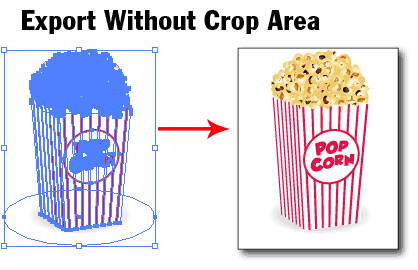
This is what happens when you try to export your vector art from illustrator.  You realise the image exported out isn’t the same as the artboard or there are ugly white spacing around the image. So why does this happen? When you export an image, illustrator will calculate the bounding box of the whole area taken up by your image including the clipping mask and set that as the image area. This normally leaves a lot of white spacing around the image.

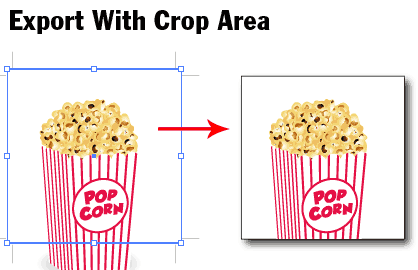
The solution to this problem is simple. Draw a box in the canvas and define it as the crop area by going to Object>Crop Area>Make. This will define the crop area. So when you export our the image will show only the crop area.
Share and Enjoy:
  • Digg
  • del.icio.us
  • Design Float
  • Reddit
  • Technorati
  • Twitter
  • StumbleUpon

Tags: crop, crop tool, cropping images, Illustrator


About The Author: admin

Hi. I'm the founder of Vector Diary. Illustrator is my passion and I have written numerous tutorials on illustrator helping people learn illustrator. My most popular tutorial on learning illustrator in 30 days has been a hit. It makes learning illustrator so easy and has benefited more than 20,000 people worldwide. Also, I've revealed some of my secret techniques in the premium tutorials. So don't forget to check it out!

Read all articles writen by this author

5 Trackbacks

Vectips Monthly Roundup: February | Vectips | Vectips Monthly Roundup: February | Vectips
March 3rd, 2009 at 1:29 am

30+ Fresh & Useful Adobe Illustrator Tutorials & Neat Tips | Noupe | 30+ Fresh & Useful Adobe Illustrator Tutorials & Neat Tips | Noupe
April 2nd, 2009 at 6:36 am

30+ Fresh & Useful Adobe Illustrator Tutorials & Neat Tips | e-szablony.eu | 30+ Fresh & Useful Adobe Illustrator Tutorials & Neat Tips | e-szablony.eu
April 2nd, 2009 at 3:38 pm

30+ Fresh & Useful Adobe Illustrator Tutorials & Neat Tips | omelyn.com | 30+ Fresh & Useful Adobe Illustrator Tutorials & Neat Tips | omelyn.com
April 13th, 2009 at 5:18 am

30+ Fresh & Useful Adobe Illustrator Tutorials & Neat Tips | The Web Design Source | 30+ Fresh & Useful Adobe Illustrator Tutorials & Neat Tips | The Web Design Source
February 7th, 2010 at 7:02 am

+Add Comment12 Comments

  1. Gravtar for Cesar
    Cesar February 7th, 2009

    I’ve never thought it was possible, a really timesaver.
    Nice trick! Thanx.

  2. Gravtar for Paul
    Paul February 7th, 2009

    Nice thank you! I was searching for this a while back.

  3. Gravtar for Khawla
    Khawla February 8th, 2009

    Thanks for the tip!

  4. Gravtar for jesseme
    jesseme February 12th, 2009

    Thanks for the tip.nice trick. enjoy

  5. Gravtar for Jane
    Jane March 1st, 2009

    thanks so much! this is going to save tons of time.

  6. Gravtar for Babatunde Adeyemi
    Babatunde Adeyemi March 27th, 2009

    Thanks for sharing. Lots of time I get lost trying to figure out how to eliminate the extraneous white-space.

  7. Gravtar for Large Format Printing
    Large Format Printing April 3rd, 2009

    This cropping issue happens a lot to us. Good info, will definately forward along to our designers…

  8. Gravtar for Awn
    Awn April 15th, 2009

    Put an update how to do this in CS4.

  9. Gravtar for Khawla
    Khawla April 18th, 2009

    I tried to do this in CS4, but could not find Crop Area under the Object menu.

  10. Gravtar for Vectordiary
    Vectordiary April 19th, 2009

    Hi Khawla, Illustrator CS4 is different. Use the new Artboard Tool to define the crap area. When you export the image, remember to check “Use Artboard”.

  11. Gravtar for Khawla
    Khawla April 20th, 2009

    Thank you!

  12. Gravtar for Peter Breis
    Peter Breis May 4th, 2009

    CS4’s Artboard tool is really nice. I use it all the time.

    If you group the artwork and then click on it with the Artboard tool it auto selects the object’s bounding box. Very quick. I then zoom to fit and save.

    The amount of time it saves and the neat view of the artwork on reopening as well as when you place it in a document saves enormous amounts of time.

Add a Comment

(required)

(will not be published)

join membership
rss or subscribe via email


Write an illustrator tutorial and get paid $150 for each tutorial! Your bio and website will also be included to increase your exposure.

Find out more»


About Vectordiary

Vector Diary is a popular blog offering great illustrator tutorials and tips. It was created by Tony Soh, a graphic designer, who has great passion in illustration. Tony has written one of the most popular tutorial for learning illustrator and has helped more than 20,000 people. On top of that, his tutorials and tips has helped designers improve their illustration skills and have received great feedback. So join Vector Diary and start learning today!

Write a Tutorial

Get paid $150 for each approved tutorials! Any writers who are passionate about sharing their illustrator techniques can contribute.

Learn how »

My Network


All Content & Theme Design © 2008 Vectordiary. Hosted by Media Temple