
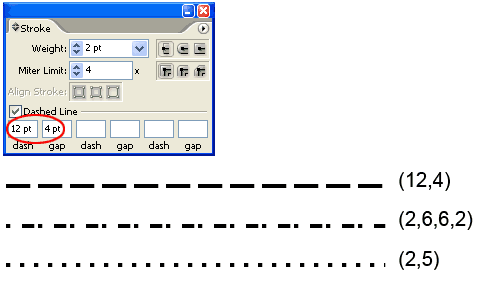
You can get interesting dotted lines with your Stroke Palette. Open up your Stroke Palette from Window>Stroke. Draw a line and select it. Enter the dash and gap value as shown. Experiment with different dash and gap values for different effects. To create a square dotted line, make sure the dash and weight is the same value.
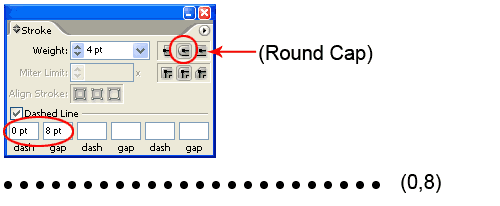
So how about circle dotted lines? Here’s the trick. Select the Round Cap and make sure dash is set to 0 pt. For gap enter a value twice the stroke weight. This will give you a nice circle dotted lines.
Bonus Tip: To expand the dotted lines, you realise Object>Expand doesn’t work. Choose Object>Flatten Transparency to expand it. You can now fill each dots with different colors.
Back to 101 Illustrator Tips & Tricks »
what a wonderful Site and Tutorials !
Exactly what I needed! Thank you for this tip!
Great tutorial! Thanks!
Amazing! Not only the info, but the way you explain it! Thanks from Madrid!
All the site…wonderfull!
nice! its been a long time to search a simple and useful tutorial like this.
Exactly what i was looking for.
thanks so much. this is such a help!
Thanks so much for the tip! I was going crazy trying to figure out how to do a dotted line.
Gosh! Thank you! I felt like a retard not being able to figure it out. You would think it would just be a line style or some other obvious application considering the simplicity…
cheers!
was driving me crazy!
just what i needed!
Thanks!
Thanks!
Thanks! I needed a refresher after not using Illustrator for so long!
you’d think something like this would be easy to do…. thank you so much your site is a great resource.
Finally! Such a simple task, thanks for explaining the post!
How to fill dots with different colors?
Flatten transparency doesn’t work to me. I make circle with ellipse tools and nothing, all the dots change color
Just stumbled on your site. You and your tutorials and your wonderful freebies are awesome! Thanks so much for sharing your knowledge!
Thank You Tony. Just what i needed , saved my time. thanks again.
Thank you soooo much!
I’m Kong daret. I live in Cambodia.
Please! I want Books Designer to you.
1.adobe Illustrator
2.adobe Photoshop
3.adobe Indesign
you can attach mail to me.
OK
Thank
really help me alot.. thank u soo muach
Thanks Dude>> nice one…
thanks saved me the hassle of trying to figure this out on my own!
You’re rigth. Thank you so much.
thanx……..
Mind blowing website
hi Tony Soh, Thank you for illustrator tutorial. Not only the info, but the way you explain it! All the site…wonderfull ! mukesh sharma
Thanks for this great tut.
Thanks. A perfect solution!!!
Thanks a lot.
Thank you! This was SUPER helpful for figuring out how to make a dotted line! 🙂
Your http://www.winsomechina.com/news/1 is excellent , i have been looking for this information everywhere.
Nice tip 🙂 Thanks
simple and better idea
I never thought creating dotted line would be so simple! Thanks for this sweet post!
thanks it’s great
kickass tutz!!!
nice!!!!!!
Great teaching. In a glance (which was all I had time for), I understood how to do it. Thanks a million dotted lines!
Thanks for this sweet post
Wow! Awesome your sharing! Thanks for sharing.
I have also tried flattening the transparency to change the fill of individual dots and it is not working. What am I missing.
Hi there! This blog post could not be written any better!
Going through this post reminds me of my previous roommate!
He continually kept preaching about this. I am going to send this
post to him. Fairly certain he will have a good read. Thank you for sharing!
The way bimatoprost ophthalmic solution is actually used and
also used as a procedures is determined by just what it is actually used for.
Because of the fact which it takes simple application using Can-C eyedrops and has now no side
effects, a lot of individuals which need fuller, thicker searching eyelashes might take benefit of this simple step to get the look desired.
If you have the appropriate kind of pimple, wash your very own face and give with a gentle cleanser.
This really is quite the good thing because pharmacists tend to
be qualified in order to give advice on signs or symptoms and medication management.
Thank you a lot, simply, quickly and effective! Great!
Greetings! Very helpful advice within this post!
It’s the little changes which will make the most important changes. Thanks a lot for sharing!
PAINT/WALL THEME: When your tend to be limited through regardless of whether or not your can paint, generally there are numerous
other things you could do to change the appearance of
your very own eating room to help make it warm, inviting and welcome for your family and guests and.
Coloured wax sticks are available yourself improvement retailers and also different other locations.
You Are Able To additionally choose a granite top dining table these types
of as glass or plastic and is simple and simple to maintain using general
home polish.
Very very helpful indeed!
your may like to look inside your interior designing choice just as
part of case you have any kind of motifs or best themes in order to give which
admitting look in order to your very own eating room. Buying furniture is these types of a hard
thing in order to choose because one has to move all around and also search for all the types to pick it up for his home.
In many homes, the oval glass dining table serves once the gathering put of
the family.