
Using both Photoshop and Illustrator is a common work flow process in many projects. In this small tip, I will show you how you can use Illustrator’s objects, shapes or text as Smart Object in Photoshop and still keep them editable in Illustrator.
In this example, I have created a shape using Star Tool, Pucker and Bloat Effect In Illustrator.

Next, I want to import it into Photoshop, so I select the shape and choose, Edit > Copy (Ctrl+C) to copy the text.
Create a new document in Photoshop and paste the text by choosing, Edit > Paste (Ctrl + V).
In the corresponding dialogue box, select Smart Object radio button and hit OK.
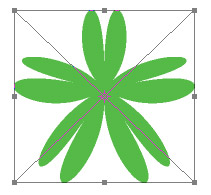
Your text should be pasted as a Smart Object in Photoshop, hit Enter on the num pad or checkmark on the Option Bar to commit it.
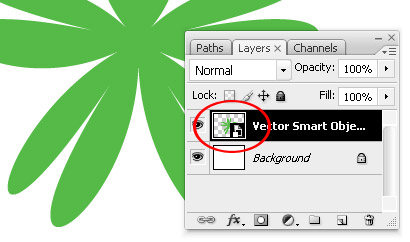
Now for some reasons I want to edit the object. For that, just double-click on the Smart Object icon in the Layer Palette. Photoshop will open a dialogue box, hit OK.

The object/shape will automatically open in Illustrator, edit the object or if you have any text or shape do the edit as you want, here I edited it a bit and added a another overlapping shape and also changed the color of the object to red.

After you are satistied with the edit, select File > Save and close the file and voila the changes will be automatically reflected in your Photoshop document.
Good work but not clear can u berif all.
@rahul rai: What is not clear?
I don’t get with you.
Otimo estou aprendendo muito, obrigado
I’m wondering…if I make a smart object in Photoshop first, can I then bring it into Illustrator? Basically the opposite direction from your example. I haven’t tried it yet.
@ bundle- Good question. You can paste the smart object in Illustrator but, i think it will not be editable. But, if you have a shape as path you can directly copy and paste it in Illustrator as fully editable Compound Shape or Compound Path.
Hey Tony, I just realized that the images seems to be misplaced, this image in the above tutorial: https://vectordiary.com/wp-content/uploads/2009/03/img2.jpg should be after the sentence: “In the corresponding dialogue box, select Smart Object radio button and hit OK.”
Also, in this lines: “Your text should be pasted as a Smart Object in Photoshop, hit Enter on the num pad or checkmark on the Option Bar to commit it.” -Instead of text it should be Shape.
@bundle you double click the smart object icon & the smart object opens in illustrator you can copy & paste it to another illustrator document from there. It would be fully editable in illustrator. It remains a vector object. I’m not sure why else you would want to do be able to do what your asking.
HELP!!
I’m in the midst of a Logo Project and am stuck with an AI issue. I need to transfer some objects (vectorized word-copy) from one AI document to another document. I find I can do it with Copy/Paste (and have adjusted my Clipboard Preferences to AICB), but every time, it come out in a form which has no stroke and fill. This is friggin nerve-wracking!! Tried dragging and “Place” too: Same result. THANKS. And, no, not due to effects, as I tried removing these (drop-shadow, etc.) and this makes no difference.
so i have a new issue. i’ve copied type and placed graphics from indesign into photoshop. it comes in as a smart object. when i double-click, it opens in illustrator and is editable. once finished editing and saving, it updates in photoshop but has color bars & crop marks that i can’t remove. any tips??? thanks!
wow.. thanks:)
I am trying to get a large banner from Illustrator CS5 (made with both vector text and photoshop images) saved as a small jpg for web use – tried pasting the small text as a smart object so it would be legible. My text pixelizes, does not stay sharp. What am I doing wrong? Also, in order to save as a jpg, the file has to be flattened, so again, the text gets pixelated. Any suggestions? Thanks!